How To Connect PS5 Controller To Android Wireless Pairing Guide
8 August 2026 | 323
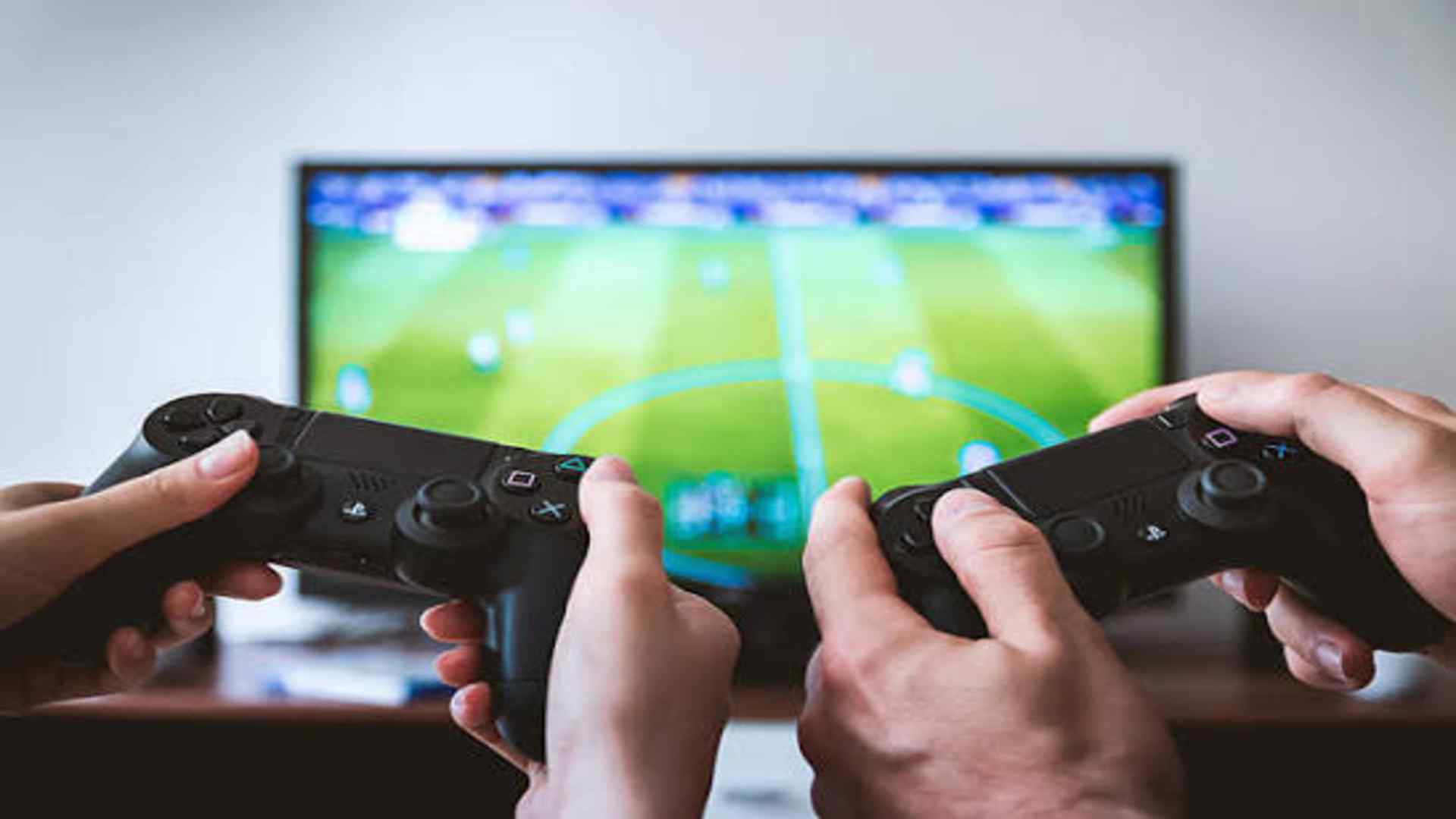
Mobile gaming has reached unprecedented heights, allowing players to enjoy console-quality titles directly on their smartphones and tablets. To truly elevate this experience, utilizing a dedicated gamepad like the Sony DualSense wireless controller offers a significant advantage over traditional touchscreen mechanics. Pairing this advanced peripheral with your portable device unlocks precise input responsiveness and ergonomic comfort during long sessions.
Preparing Your DualSense for Mobile Pairing
Before initiating the wireless handshake, you must ensure that your gaming peripheral is completely powered down to avoid conflicting signals. If the controller is actively synced to a PlayStation 5 console, press and hold the central PS button until the surrounding light strip turns completely dark. Managing these initial status variables guarantees that the internal hardware prepares itself correctly for a fresh external connection layout.
Next, you will need to activate the built-in Bluetooth discovery state manually using a specific physical combination on the hardware shell. Simultaneously press and hold the Share button, which sits on the upper left side, alongside the central PS button for several seconds. Release both components only when the light bar begins flashing in a rapid, continuous blue pattern to signify active discovery.
Configuring the Interface Settings on Android
With the controller broadcasting its signature, shift your attention to your mobile device to complete the digital handshake. Unlock your phone and swipe down from the top of the display to access the quick settings layout panel. Long-press the Bluetooth icon to open the dedicated wireless management environment where new peripherals are officially registered.
Tap the option labeled pair new device to force your operating system to scan the immediate local vicinity for active signals. Within a few moments, the peripheral should appear under the available options listed clearly as Wireless Controller. Select this name to initiate the pairing process and finalize the connection parameters across your system.
Optimizing Gameplay Performance and Diagnostics
Once connected, the light bar on the peripheral will stabilize into a solid color indicator to confirm a successful integration. Many modern mobile titles will instantly recognize the button layouts, allowing you to jump straight into the action without manual mapping. Players can also utilize a to verify that all inputs are responding correctly before launching intense multiplayer matches.
Keep in mind that while basic button layouts function flawlessly, certain proprietary features like advanced haptic feedback may vary by application support. Monitoring your device battery performance while running wireless peripherals ensures your sessions remain completely uninterrupted. Taking these small diagnostic precautions guarantees a smooth transition from standard console gaming into a fully portable competitive configuration.